

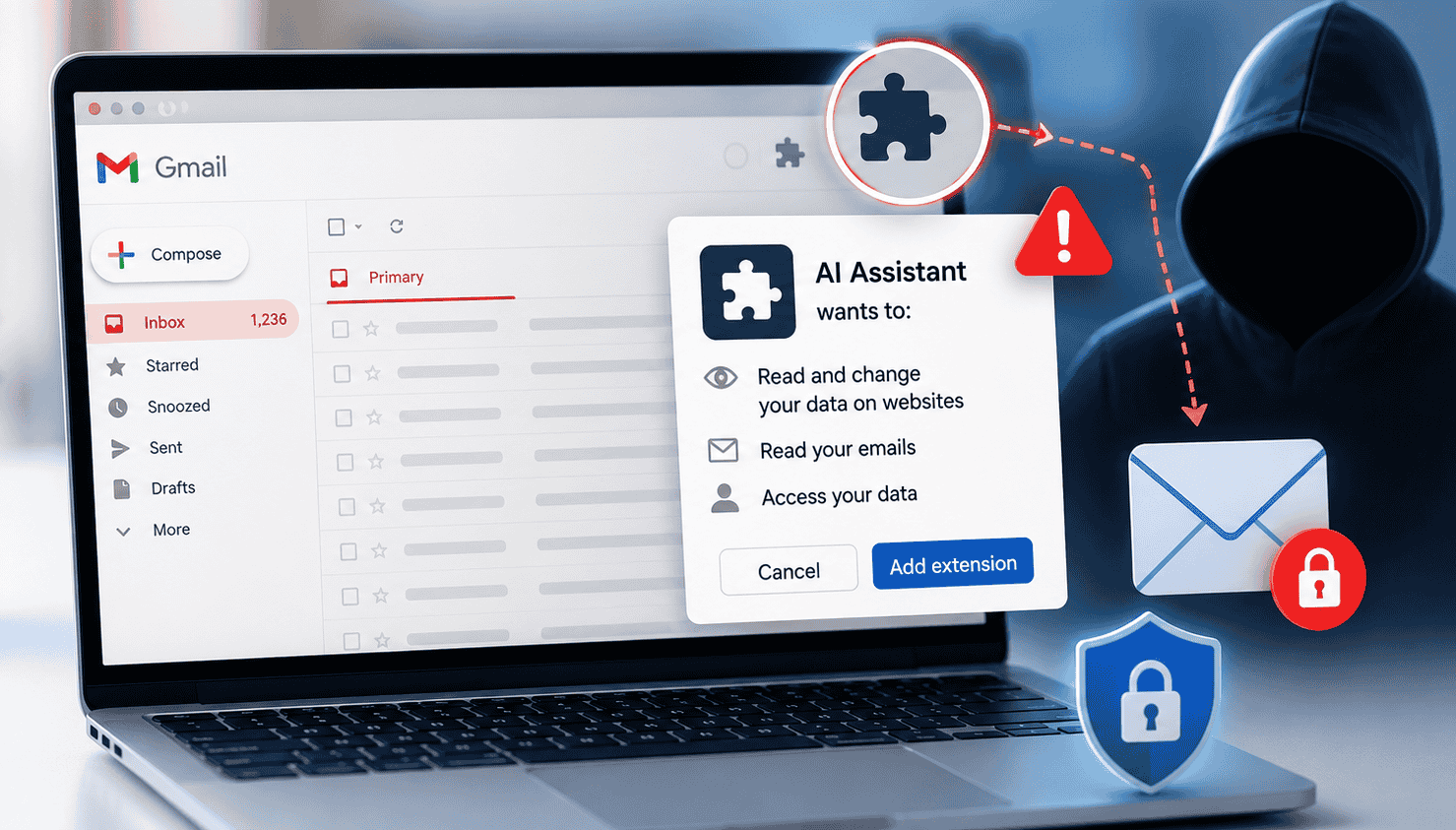
AI browser extensions are genuinely useful. They summarize webpages, write emails, and drop tools directly into Gmail. But what exactly can these extensions see?
Broad permissions give an extension access to the raw information displayed on the websites you visit. If you have Gmail open, your private conversations, business emails, and unfinished drafts are completely visible.this became a very real problem in 2026. Researchers uncovered a massive campaign using fake AI extensions to vacuum up sensitive browser data. According to LayerX research reported by Forbes, 15 of those extensions had Gmail-specific code bolted on to extract email content.
What happened with the malicious AI extensions?
Security teams called the campaign AiFrame. Attackers disguised a group of malicious Chrome extensions as standard AI productivity tools.
Researchers flagged over 30 extensions tied to AiFrame. TechRadar reported the combined installation base hit anywhere from 260,000 to 300,000 users.
These extensions disguised themselves as standard tools for:
- AI assistance
- Writing
- Translation
- Summarization
- Productivity
- Sidebar AI features
- Chatbot-style functionality
And that made them incredibly convincing. You search for an AI tool, find a professional-looking store page, and assume the download is safe.But researchers found the extensions were quietly exploiting standard browser functions to scrape webpage data. Forbes reported that 15 of the AiFrame extensions used specific code to rip visible email content straight out of Gmail’s underlying webpage structure.
Why this matters
Your email inbox holds a massive amount of sensitive data. It contains:
- Personal conversations
- Phone numbers
- Addresses
- Financial information
- Password-reset messages
- Business documents
- Customer information
- Confidential company discussions
- Verification codes
- Private attachments or links
Any extension with access to your screen can read that data. The privacy implications are massive.
How can a browser extension read your email?
The actual mechanism for reading your email is surprisingly simple.When you open Gmail, your messages display as basic webpage text. Any browser extension with the right permissions can interact with that text.Attackers completely bypass your Gmail password. The malicious extension just quietly reads the open Gmail page while you are logged in.
Reading the webpage rather than breaking Gmail
Bleeping Computer reported the LayerX findings on exactly how this worked. The malicious extensions used Gmail-specific content scripts to scrape visible text directly from Gmail’s Document Object Model (DOM). Researchers found the extensions could repeatedly strip message content just by reading the page.
You open Gmail → the email appears on the screen → the extension accesses the webpage content → the extension extracts the information → the data gets piped to an external server.
Could drafts also be exposed?
Yes, probably.
Forbes noted the AiFrame extensions could access active drafts and compose-related text depending on what you had open on the screen. This is a massive problem. People constantly drop raw, sensitive thoughts into drafts before sanding them down to send.
Why AI extensions are attractive to attackers
Slapping an AI label on a browser extension is the easiest way to get people to download it. People constantly search for tools that promise to:
- Summarize websites
- Write emails
- Explain documents
- Translate content
- Generate replies
- Answer questions
- Work with Gmail
- Add ChatGPT-style features to the browser
Attackers exploit that heavy demand. They build extensions with shiny, useful interfaces to mask the data harvesting underneath.layerX previously found malicious campaigns using fake brands and AI-generated store pages. Their research confirmed these extensions can give attackers persistent, long-term access to your active browser sessions.the AI label tells you absolutely nothing about how a developer handles your data.
What data could an AI extension access?
An extension accesses whatever its permissions allow. Here is what normally gets exposed:
- Email content: Gmail conversations and messages
- Drafts: Unsent email text
- Personal information: Names, phone numbers, addresses
- Business information: Internal discussions and documents
- Authentication data: Information visible on sensitive webpages
- Browsing data: Content from websites you visit
- AI prompts: Text entered into AI services
- Page metadata: Titles, URLs, and webpage information
Legitimate tools genuinely need broad permissions to work. An AI email assistant obviously needs to read your email before it can draft a reply.
You just have to ask 3 basic questions. Does the extension access only what it needs? Does the developer explain why they need it? Do they handle that data responsibly?
How to check an AI extension before installing it
Anyone can run a basic privacy check on a new extension.
1. Check the developer
Look closely at the publisher. Ask yourself:
- Is the developer identifiable?
- Does the developer have an established website?
- Does the extension have a meaningful support page?
- Are there other reputable products from the same developer?
- Does the developer’s identity match the company’s official website?
Watch out for extensions using familiar brand names published by random, unrelated developers.
2. Read the permissions
Stop before you click Add to Chrome. Review exactly what the extension wants to access. A simple webpage summarizer has absolutely no reason to request access to your entire browsing history or unrelated websites.
3. Read the privacy policy
A privacy policy reveals exactly how a developer plans to handle your information. Look for hard answers to these questions:
- Is webpage content collected?
- Is email content transmitted?
- Is information stored?
- Is data shared with third parties?
- Is information used for AI training?
- How long is data retained?
- Can users delete collected information?
4. Don’t trust ratings alone
Malicious extensions often look incredibly professional. They accumulate thousands of 5-star reviews and massive download counts well before security researchers finally catch them. Academic research published on arXiv documents a long history of attackers using highly rated extensions for spying, phishing, and data theft.
5. Install fewer extensions
Every active extension adds another layer of third-party code to your browser. Pick one solid AI assistant and delete the rest.
How to protect your email from risky extensions
A few simple habits will drastically reduce your exposure in Gmail or Outlook.
Audit your installed extensions
Open your Chrome extensions management page. Delete anything that:
- You no longer use
- You do not recognize
- Came from an unknown developer
- Requests strange permissions
- Acts suspiciously
- You installed for a single project and forgot about
Delete the tools you are saving for later.
Use separate browser profiles
Set up different browser profiles to isolate your activities.
For example:
- Personal profile: Gmail, personal accounts, shopping
- Work/study profile: University accounts, work email, productivity tools
This physical separation naturally limits the damage a rogue extension can do to your most sensitive accounts.
Be careful with AI tools that work directly inside Gmail
AI extensions inside Gmail obviously need to read your email to function. Run through this checklist before hitting install:
- What information does it read?
- Where does that information go?
- Is processing performed locally or remotely?
- Is email data stored?
- Can you disable email access?
- Who operates the service?
Look for transparency. Several privacy-focused tools on the Chrome Web Store explicitly advertise client-side processing with zero external uploads. Verify those claims, but treat that level of detail as a strong positive signal.
What should you do if you installed a suspicious AI extension?
Treat a suspicious extension as a full security breach. Take immediate action.
Step 1: Remove the extension
Open your browser’s extension manager and fully uninstall the software.
Step 2: Review your accounts
Check every important account that was open in that browser. You are looking for:
- Unexpected account activity
- Unknown login sessions
- Security alerts
- New forwarding rules
- Suspicious sent messages
- Unexpected password changes
Step 3: Change important passwords
Assume your sensitive data leaked. Change the passwords for your core accounts immediately. Pick unique passwords for every single service.
Step 4: Enable multi-factor authentication
MFA bolts an extra layer of armor onto your accounts. Set up passkeys or use a strong authenticator app to limit your reliance on basic passwords.
Step 5: Treat exposed email information as potentially sensitive
A compromised extension probably scraped your business emails, customer data, and password-reset links. You have to look past just changing your Gmail password. Corporate users need to notify their IT teams and run a full audit on the affected accounts.
Common mistakes people make with browser extensions
Installing an extension because it has a familiar name
Names like “AI Assistant” or “ChatGPT Sidebar” are completely meaningless. Always verify the actual publisher.
Giving every extension maximum permissions
People constantly click through permission screens without reading a single word. Take 10 seconds to actually verify what you are giving the software access to.
Keeping unused extensions installed
That extension you downloaded 6 months ago is still quietly running in the background. Delete it.
Assuming the Chrome Web Store means guaranteed safety
Security researchers constantly find malicious extensions thriving on official platforms. Treat the Chrome Web Store as just one basic trust signal. You still have to do your own research.
AI extension data privacy: the bigger lesson
The AiFrame incident highlights a massive structural issue with modern browser-based AI. These tools desperately need context to function.An AI assistant has to read your webpage to summarize it. An email tool has to scan your messages to draft a reply. A productivity app needs total access to your calendar to schedule a meeting.You trade your privacy for that convenience. Evaluate every single AI extension based on exactly what data it requests, where that data actually goes, and how transparent the developer is about the whole process.
Convenience rarely equals security. The 2026 AiFrame campaign proved exactly how attackers weaponize shiny AI productivity tools to scrape Gmail and steal private data.
Take 5 minutes right now to audit your active extensions. Rip out the junk you never use. Check the permissions on the tools you actually keep. Lock down your core accounts with hard passwords and multi-factor authentication.